Build a User Management Application
Introduction & Quick Start Guide
In this tutorial, you will learn how to build a simple user management application using the platformOS User Module. The goal is to understand how authentication works on platformOS, explore the built-in pages provided by the module, and prepare your project for future features such as roles, profile updates, and two-factor authentication.
We will begin with a clean instance, install and set up the User Module using its installer, and create a minimal homepage.
In the next chapters, we will extend this foundation step by step to add navigation, sign in/sign out, and user-aware layouts.
Tip
You can browse the source code of the User Module in the pos-module-user repository to see every page and helper it provides.
Before we explore the User Module in detail, follow the steps below to set up your environment and prepare a clean project.
Step 1: Create a new instance
Sign in to the Partner Portal and create a new instance:
Example instance name:
user-module-test-00
For more details, refer to the Create an instance guide.
Step 2: Create your project folder
Create the directory for your project and navigate to it:
mkdir user-module-test-00
cd user-module-test-00
This folder will become your project root.
Step 3: Add and authenticate your environment
Connect your local project to your new instance:
pos-cli env add --url https://user-module-test-00.staging.oregon.platform-os.com staging
A browser window opens and prompts you to authorize the connection. For further explanation, see Authenticate your environment.
Step 4: Install the User Module
To work with authentication and profiles, your application needs the User Module. Install it with the following command, which downloads the module source code together with all its dependencies (core and common-styling):
pos-cli modules install user
As this is a fresh project folder, you may be prompted to create the standard app/ directory. Confirm when asked, for example:
The directory /Users/you/platformos/user-module-test-00/app does not exist. Do you want to create it? (y/n): y
The command also creates the app/pos-modules.json file, which keeps track of the modules installed in your project.
Step 5: Run the User Module installer
The User Module ships with an install generator that takes care of the setup steps you would otherwise have to do by hand. Run it from your project root:
pos-cli generate run modules/user/generators/install
The installer asks a few questions and performs only the steps you agree to. For this tutorial, answer as follows:
| Question | Answer | What it does |
|---|---|---|
Generate a starter app/views/layouts/application.liquid? |
Yes | Creates a layout with the pos-app class, loads Common Styling, and displays flash notifications (toasts). If your project already has layouts, the installer asks which of them to update instead. |
Copy the default RBAC permissions file into app/? |
Yes | Creates an overwrite of the permissions file in app/modules/user/public/lib/queries/role_permissions/permissions.liquid and adds core and user to modules_that_allow_delete_on_deploy in app/config.yml. You will use this file in the Roles and Permissions chapter. |
Generate a migration that sets the USER_DEFAULT_ROLE constant? |
Yes, keep the default member |
Writes a migration to app/migrations that sets the role assigned automatically to every new user. The migration runs on your next deploy. |
| Create a superadmin user now? | No | Deploys your project to the environment you pick, then creates a user with the superadmin role there. You do not need one for this tutorial, but you can use this option in your own projects. The installer only asks this question if you have added at least one environment with pos-cli env add. |
Tip
If you create a superadmin, the installer sends the password directly to your instance and never writes it to a file. Store it somewhere safe.
Now deploy your project, which also runs the USER_DEFAULT_ROLE migration:
pos-cli deploy staging
From now on, you can also keep your instance up to date automatically while you work:
pos-cli sync staging
At this point, your instance includes all the endpoints you need: sign in, registration, password reset, two-factor authentication, OAuth handlers, and more. You will link to these pages from your application's navigation later in the tutorial.
Want to know what the installer does under the hood, or prefer to set everything up by hand? Follow the manual steps in the Setup section of the User Module README.
Step 6: Review the layout
Open the layout generated by the installer:
app/views/layouts/application.liquid
<!DOCTYPE html>
<html class="pos-app">
  <head>
    <meta charset="utf-8">
    <meta name="viewport" content="width=device-width,initial-scale=1,user-scalable=yes">
    <title>{% if context.page.metadata.title %}{{ context.page.metadata.title }}{% else %}platformOS{% endif %}</title>

    {% comment %} platformOS common-styling: loads the design system CSS/JS into the page head {% endcomment %}
    {% render 'modules/common-styling/init', reset: true %}
  </head>
  <body>
    {{ content_for_layout }}

    {% liquid
      function flash = 'modules/core/commands/session/get', key: 'sflash', clear: null
      if context.location.pathname != flash.from or flash.force_clear
        function _ = 'modules/core/commands/session/clear', key: 'sflash'
      endif

      render 'modules/common-styling/toasts', autohide: null, delay: null, message: flash.message, severity: flash.severity
    %}
  </body>
</html>
Common Styling provides the base CSS, form styling, and UI components used across all platformOS modules, including the pages that come with the User Module. Loading it in your layout ensures that the sign-in, registration, and profile pages look consistent with the rest of your application. The modules/common-styling/init partial also creates the global window.pos JavaScript namespace and exposes the CSRF token used by the module's forms.
To apply the User Module's form styles as well, add the following line right after the modules/common-styling/init render tag:
<link rel="stylesheet" href="{{ 'modules/user/style/pos-user-form.css' | asset_url }}">
You will add navigation and other UI elements to this layout as you progress through the tutorial.
For advanced configuration and customization options, refer to the Common Styling documentation, or visit the built-in /style-guide page on your instance to explore all available components.
Step 7: Create the Homepage
Now that the environment is set up, create the homepage of your project. In platformOS, pages live in the app/views/pages directory, so create it first:
mkdir -p app/views/pages
The -p flag creates nested directories in one step.
Tip
Learn more about the recommended directory layout in the Directory Structure section of the Developer Guide.
Then create the app/views/pages/index.liquid file with the following content:
app/views/pages/index.liquid
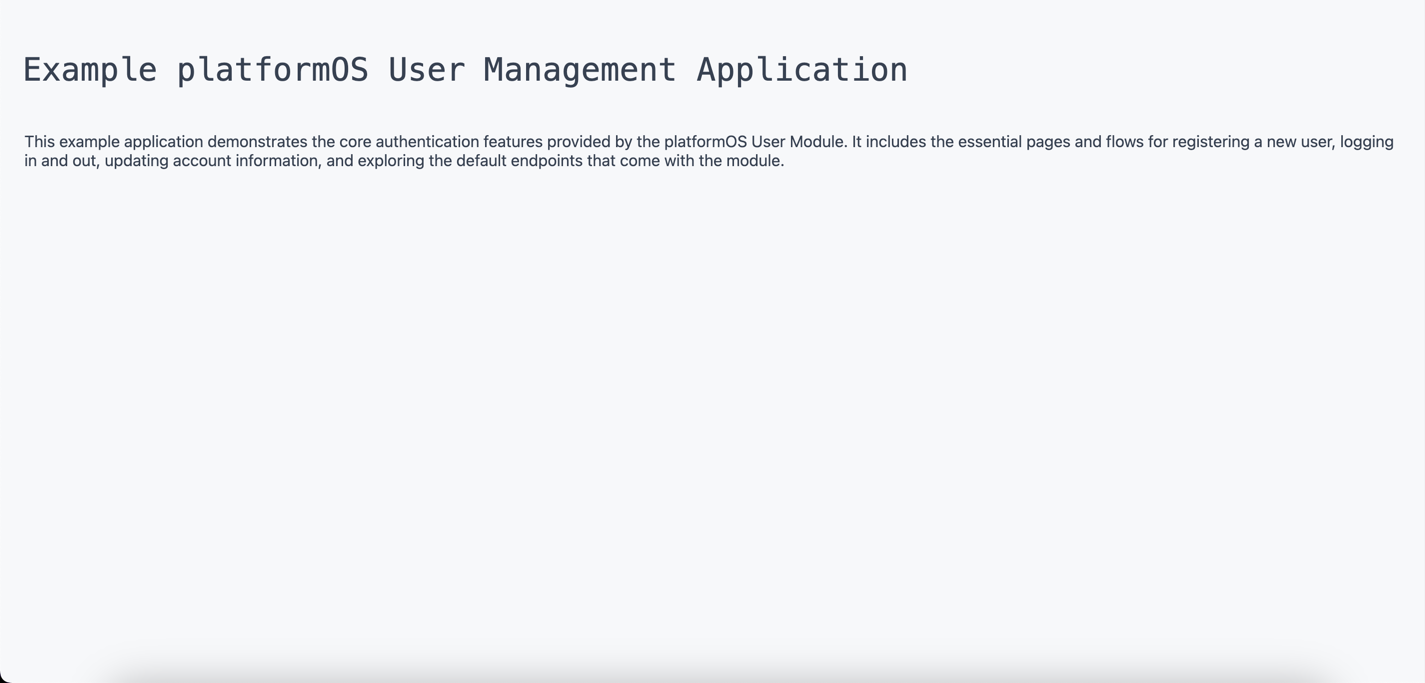
<h2 class="pos-heading-2">Example platformOS User Management Application</h2>

<p>
  This example application demonstrates the core authentication features provided
  by the platformOS User Module. It includes the necessary pages and flows for
  registering a new user, logging in and out, updating account information, and
  exploring the default endpoints that come with the module.
</p>
Deploy or sync your changes and reload your instance to confirm the page loads correctly. If Common Styling is configured correctly, the heading and text should display using the default typography and spacing: